
6.4 KiB

VibeTunnel
Turn any browser into your Mac terminal. VibeTunnel proxies your terminals right into the browser, so you can vibe-code anywhere.



Why VibeTunnel?
Ever wanted to check on your AI agents while you're away? Need to monitor that long-running build from your phone? Want to share a terminal session with a colleague without complex SSH setups? VibeTunnel makes it happen with zero friction.
"We wanted something that just works" - That's exactly what we built.
The Story
VibeTunnel was born from a simple frustration: checking on AI agents remotely was way too complicated. During an intense coding session, we decided to solve this once and for all. The result? A tool that makes terminal access as easy as opening a web page.
Read the full story: VibeTunnel: Turn Any Browser Into Your Mac Terminal
✨ Key Features
- 🌐 Browser-Based Access - Control your Mac terminal from any device with a web browser
- 🚀 Zero Configuration - No SSH keys, no port forwarding, no complexity
- 🤖 AI Agent Friendly - Perfect for monitoring Claude Code, ChatGPT, or any terminal-based AI tools
- 🔒 Secure by Design - Password protection, localhost-only mode, or secure tunneling via Tailscale/ngrok
- 📱 Mobile Ready - Check your terminals from your phone, tablet, or any computer
- 🎬 Session Recording - All sessions are recorded in asciinema format for later playback
Quick Start
1. Download & Install
Download VibeTunnel and drag it to your Applications folder.
2. Launch VibeTunnel
VibeTunnel lives in your menu bar. Click the icon to start the server.
3. Use the vt Command
Prefix any command with vt to make it accessible in your browser:
# Monitor AI agents
vt claude

# Run development servers
vt npm run dev

# Watch long-running processes
vt python train_model.py

# Or just open a shell
vt --shell
4. Open Your Dashboard
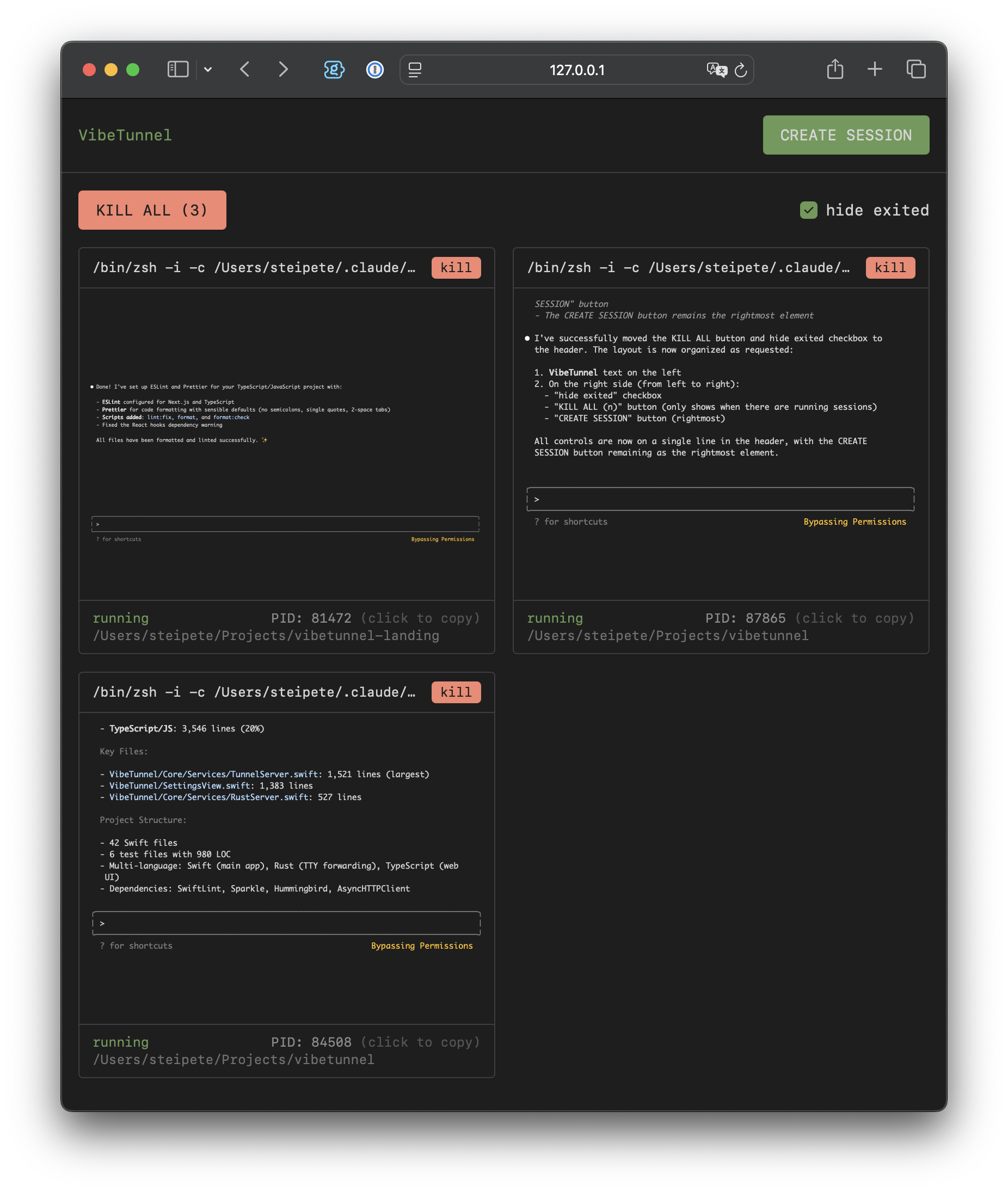
Visit http://localhost:4020 to see all your terminal sessions in the browser.
Real-World Use Cases
🤖 AI Development
Monitor and control AI coding assistants like Claude Code remotely. Perfect for checking on agent progress while you're away from your desk.
vt claude --dangerously-skip-permissions
🛠️ Remote Development
Access your development environment from anywhere. No more "I need to check something on my work machine" moments.
vt code .
vt npm run dev
📊 System Monitoring
Keep an eye on system resources, logs, or long-running processes from any device.
vt htop
vt tail -f /var/log/system.log
🎓 Teaching & Collaboration
Share terminal sessions with colleagues or students in real-time through a simple web link.
Remote Access Options
Option 1: Tailscale (Recommended)
- Install Tailscale on your Mac and remote device
- Access VibeTunnel at
http://[your-mac-name]:4020from anywhere on your Tailnet
Option 2: ngrok
- Add your ngrok auth token in VibeTunnel settings
- Enable ngrok tunneling
- Share the generated URL for remote access
Option 3: Local Network
- Set a dashboard password in settings
- Switch to "Network" mode
- Access via
http://[your-mac-ip]:4020
Command Options
# Claude-specific shortcuts
vt --claude              # Auto-locate and run Claude
vt --claude-yolo         # Run Claude with dangerous permissions

# Shell options
vt --shell               # Launch interactive shell
vt -i                    # Short form for --shell

# Direct execution (bypasses shell aliases)
vt -S ls -la            # Execute without shell wrapper
Configuration
Access settings through the menu bar icon:
- Server Port: Change the default port (4020)
- Launch at Login: Start VibeTunnel automatically
- Show in Dock: Toggle between menu bar only or dock icon
- Server Mode: Switch between Rust (default) or Swift backend
Architecture
VibeTunnel is built with a modern, secure architecture:
- Native macOS app written in Swift/SwiftUI
- High-performance Rust server for terminal management
- Web interface with real-time terminal rendering
- Secure tunneling via Tailscale or ngrok
For technical details, see ARCHITECTURE.md.
Building from Source
Prerequisites
- Rust: Install via https://rustup.sh/
# After installing Rust, add the x86_64 target for universal binary support rustup target add x86_64-apple-darwin - Node.js: Required for building the web frontend
Build Steps
# Clone the repository
git clone https://github.com/amantus-ai/vibetunnel.git
cd vibetunnel

# Build the Rust server
cd tty-fwd && cargo build --release && cd ..

# Build the web frontend
cd web && npm install && npm run build && cd ..

# Open in Xcode
open VibeTunnel.xcodeproj
Local Development Setup
For local development, configure your development team ID in Local.xcconfig. Without this, you'll face repeated permission and keychain dialogs, especially with ad-hoc installations. With proper code signing, these dialogs only appear on first launch.
To get your team ID:
security find-identity -v -p codesigning
Then copy mac/Config/Local.xcconfig.template to mac/Config/Local.xcconfig and insert your team ID. This file is gitignored to keep your personal settings private.
Credits
Created with ❤️ by:
- @badlogic - Mario Zechner
- @mitsuhiko - Armin Ronacher
- @steipete - Peter Steinberger
Contributing
We welcome contributions! Please see our Contributing Guide for details.
License
VibeTunnel is open source software licensed under the MIT License. See LICENSE for details.
Ready to vibe? Download VibeTunnel and start tunneling!